
-
We’re currently investigating an issue related to the forum theme and styling that is impacting page layout and visual formatting. The problem has been identified, and we are actively working on a resolution. There is no impact to user data or functionality, this is strictly a front-end display issue. We’ll post an update once the fix has been deployed. Thanks for your patience while we get this sorted.
You are using an out of date browser. It may not display this or other websites correctly.
You should upgrade or use an alternative browser.
You should upgrade or use an alternative browser.
Network & NAS Headache
Page 2 - Seeking answers? Join the AnandTech community: where nearly half-a-million members share solutions and discuss the latest tech.
Mr.Entenmann
Member
When entering in the putty settings, for the IP address; I enter in my NAS IP and for the port, shall I keep it at port 22 ?
What do I enter at the login as screen within putty ?
What do I enter at the login as screen within putty ?

Mr.Entenmann
Member
Host IP is my NAS IP.

What do I enter as the login ?

What do I enter as the login ?
Mr.Entenmann
Member
Noo - You believe I'm making this up, I would intentionally make a network issue that I have had others, whom I can prove tried to untangle this mess that was started from one suggestion, to another then another and just spiraled out of control. :|

The following looks like a long story (it is only 600 words). I do not know what the user's overall knowledge is, and what exactly was already done. Thus the info goes through the motions of configuring and checking most of the common aspects of Windows OS' LAN features.
All aspects should be checked, stating that it "worked before" , or persevering on"I did Not do any thing ", is not a way to deal with current Sharing problems.
----------------------
Win7 when configured on peer-to-peer Network has three types of Sharing configurations.
HomeGroup = Works only between Win 7 computers. This type of configuration makes it very easy to Entry Level Users to start Network sharing.
Home Network or Work Network = Basically similar(and better) to the previous methods of Work Group sharing that let you control what, how, and to whom folders would be shared with.
Public Sharing = Public Network (like Internet cafe) to reduce security risks.
For best results log to each computer's System Screen and set all the computers to be on a with the same Work Group name while each computer has its own unique name.
http://www.ezlan.net/Win7/net_name.jpg
Make sure that the Software Firewall, AV, or other components of Security allow free local traffic on all Networked computers. If you use 3rd party Security On, Vista/XP Native Firewall should be Off, and the active Firewall has to adjusted to your Network IP numbers on what is some time called the Trusted Zone (consult your 3rd Party Firewall instructions
General example, http://www.ezlan.net/faq.html#trusted
Please Note that some 3rd party Software Firewalls/AV/Security suits keep blocking aspects of Local Traffic even it they are turned Off (disabled). If possible configure the Firewall correctly, or totally uninstall it to allow clean flow of local network traffic.
If end up with the 3rd party software uninstalled or disabled, make sure that Windows native Firewall is On .
------------------------------
If your network is comprised of Win 7 only and you want a simple Network, use this.
http://windows.microsoft.com/en-us/windows7/help/videos/sharing-files-with-homegroup
After configuring the Homegroup scroll down to the Permission/Security section.
-----------------------------
Networking Win 7 with other version of Windows as Work Network (works very well if all computers are Win 7 too).
In the Network Center, clicking on the Network type opens the window to the right.
Choose your type of Network. Notice the check mark at the bottom, and check/uncheck it according to your needs.
http://www.ezlan.net/Win7/net_type.jpg
Win 7 - http://windows.microsoft.com/en-us/windows7/Networking-home-computers-running-different-versions-of-Windows
Win 7 Work Network specific folder sharing - http://www.onecomputerguy.com/windows7/windows7_sharing.htm
Vista File and Printer Sharing- http://technet.microsoft.com/en-us/library/bb727037.aspx
Windows XP File Sharing - http://support.microsoft.com/default.aspx?scid=kb;en-us;304040
In Win XP Pro with simple sharing Off, you can Visually see the Permission/Security setting , and configure them to your liking.
http://www.microsoft.com/windowsxp/using/security/learnmore/accesscontrol.mspx#securityTab
Printer Sharing XP - http://www.microsoft.com/windowsxp/using/networking/expert/honeycutt_july2.mspx
Windows Native Firewall setting for Sharing XP - http://support.microsoft.com/kb/875357
Windows XP patch for Sharing with Vista (Not need for XP-SP3) - http://support.microsoft.com/kb/922120
When finished with the setting of the system it is advisable to Reboot all the hardware including the Router and all computers involved.
-------------
If you have Permission and Security issues with Vista/Win7, check the following settings.
Point to the a Folder that meant to to be share. Right click and choose properties.
In the properties
Click on the Security tab shown in the pic bellow to the right) and check that the users and their permission (shown in the pic bellow center and left) are correctly configured. Then do the same to the Permission tab.
This screen shot is from Win 7, Vista's menus are similar.
http://www.ezlan.net/Win7/Permission-Security.jpg
In both the Security panel, and the Permission panel you have to highlight each User/Group and examine that the Permission Controls are checked correctly.
When everything is OK, Reboot the Network (Router, and computer).
* Note . The Groups and Users shown in the screen-shoot are just an example. Your list will look the way your system is configured.
**Note . All users that are allowed to share need to have account on all the computers that they are allowed to connect to.
---------------
Everyone is an account, it means a group of all of the users that already have an account and been established as users. It is available to avoid the need of configuring permission to each on its own, it does not mean Everyone that feel that they would like to login.
-----------
😎
All aspects should be checked, stating that it "worked before" , or persevering on"I did Not do any thing ", is not a way to deal with current Sharing problems.
----------------------
Win7 when configured on peer-to-peer Network has three types of Sharing configurations.
HomeGroup = Works only between Win 7 computers. This type of configuration makes it very easy to Entry Level Users to start Network sharing.
Home Network or Work Network = Basically similar(and better) to the previous methods of Work Group sharing that let you control what, how, and to whom folders would be shared with.
Public Sharing = Public Network (like Internet cafe) to reduce security risks.
For best results log to each computer's System Screen and set all the computers to be on a with the same Work Group name while each computer has its own unique name.
http://www.ezlan.net/Win7/net_name.jpg
Make sure that the Software Firewall, AV, or other components of Security allow free local traffic on all Networked computers. If you use 3rd party Security On, Vista/XP Native Firewall should be Off, and the active Firewall has to adjusted to your Network IP numbers on what is some time called the Trusted Zone (consult your 3rd Party Firewall instructions
General example, http://www.ezlan.net/faq.html#trusted
Please Note that some 3rd party Software Firewalls/AV/Security suits keep blocking aspects of Local Traffic even it they are turned Off (disabled). If possible configure the Firewall correctly, or totally uninstall it to allow clean flow of local network traffic.
If end up with the 3rd party software uninstalled or disabled, make sure that Windows native Firewall is On .
------------------------------
If your network is comprised of Win 7 only and you want a simple Network, use this.
http://windows.microsoft.com/en-us/windows7/help/videos/sharing-files-with-homegroup
After configuring the Homegroup scroll down to the Permission/Security section.
-----------------------------
Networking Win 7 with other version of Windows as Work Network (works very well if all computers are Win 7 too).
In the Network Center, clicking on the Network type opens the window to the right.
Choose your type of Network. Notice the check mark at the bottom, and check/uncheck it according to your needs.
http://www.ezlan.net/Win7/net_type.jpg
Win 7 - http://windows.microsoft.com/en-us/windows7/Networking-home-computers-running-different-versions-of-Windows
Win 7 Work Network specific folder sharing - http://www.onecomputerguy.com/windows7/windows7_sharing.htm
Vista File and Printer Sharing- http://technet.microsoft.com/en-us/library/bb727037.aspx
Windows XP File Sharing - http://support.microsoft.com/default.aspx?scid=kb;en-us;304040
In Win XP Pro with simple sharing Off, you can Visually see the Permission/Security setting , and configure them to your liking.
http://www.microsoft.com/windowsxp/using/security/learnmore/accesscontrol.mspx#securityTab
Printer Sharing XP - http://www.microsoft.com/windowsxp/using/networking/expert/honeycutt_july2.mspx
Windows Native Firewall setting for Sharing XP - http://support.microsoft.com/kb/875357
Windows XP patch for Sharing with Vista (Not need for XP-SP3) - http://support.microsoft.com/kb/922120
When finished with the setting of the system it is advisable to Reboot all the hardware including the Router and all computers involved.
-------------
If you have Permission and Security issues with Vista/Win7, check the following settings.
Point to the a Folder that meant to to be share. Right click and choose properties.
In the properties
Click on the Security tab shown in the pic bellow to the right) and check that the users and their permission (shown in the pic bellow center and left) are correctly configured. Then do the same to the Permission tab.
This screen shot is from Win 7, Vista's menus are similar.
http://www.ezlan.net/Win7/Permission-Security.jpg
In both the Security panel, and the Permission panel you have to highlight each User/Group and examine that the Permission Controls are checked correctly.
When everything is OK, Reboot the Network (Router, and computer).
* Note . The Groups and Users shown in the screen-shoot are just an example. Your list will look the way your system is configured.
**Note . All users that are allowed to share need to have account on all the computers that they are allowed to connect to.
---------------
Everyone is an account, it means a group of all of the users that already have an account and been established as users. It is available to avoid the need of configuring permission to each on its own, it does not mean Everyone that feel that they would like to login.
-----------
😎
Mr.Entenmann
Member
JackMDS - that post is almost, if not identical to other posts, posted by others, none of the solutions worked, why some gave up, that and they admitted they lacked the knowledge. As I mentioned in my original post, one person who helped me with team viewer told me, in relation to your post Jack, none of those solutions worked.
I should try to get the user on this forum, in the mean time, the only thing is to continue as was.
I should try to get the user on this forum, in the mean time, the only thing is to continue as was.

Elixer
Lifer
First off, why are you trying to block out your LAN IP?Host IP is my NAS IP.
What do I enter as the login ?
You do realize that, 192.168.x.x is private?
Nobody can't connect to you via that address.
Secondly, that image I posted has all the info you need, not sure why you didn't at least look at the screen shot?
The link I posted also tells you, step by step on what to do...
Mr.Entenmann
Member
The image in post #28, is where I gave a password for SSH for the NAS. When entering the IP for the NAS in the login as field, then entering in the password I supplied for the SSH in the image you posted, I get a access denied message for the password ?
First off, why are you trying to block out your LAN IP?
You do realize that, 192.168.x.x is private?
Nobody can't connect to you via that address.
Secondly, that image I posted has all the info you need, not sure why you didn't at least look at the screen shot?
The link I posted also tells you, step by step on what to do...
Elixer
Lifer
The image in post #28, is where I gave a password for SSH for the NAS. When entering the IP for the NAS in the login as field, then entering in the password I supplied for the SSH in the image you posted, I get a access denied message for the password ?
Eh, why are you entering in an IP for the login?
You seriously don't see the text under the 1st red square in that image?
Mr.Entenmann
Member
Sorry.
wbinfo - u result: not found
wbinfo - g result: WBC_ERR_WINBIND_NOT_AVAILABLE.
wbinfo - u result: not found
wbinfo - g result: WBC_ERR_WINBIND_NOT_AVAILABLE.
Elixer
Lifer
...Sorry.
wbinfo - u result: not found
wbinfo - g result: WBC_ERR_WINBIND_NOT_AVAILABLE.
No spaces for the parameter.Well, on the NAS, I would do wbinfo -u and wbinfo -g and make sure that output is correct for starters...
You might also want to increase the log verbosity to tell you more.
wbinfo - u is not the same as wbinfo -u.
Mr.Entenmann
Member
I put a space when posting, I didn't actually put a space when writing the command in putty 🙂
Elixer
Lifer
You mean the ssh shell right?
When you ssh in, you will then see the # prompt?
Since those don't work for you (assuming it was tried as stated above), then they changed things around since the last time I worked with a WD device.
What do your logs for samba show in your /var/log directory after you try to access the NAS from the machine that can't?
Most likely called log.smbd. Do tac log.smbd |more and see if you can find error messages.
When you ssh in, you will then see the # prompt?
Since those don't work for you (assuming it was tried as stated above), then they changed things around since the last time I worked with a WD device.
What do your logs for samba show in your /var/log directory after you try to access the NAS from the machine that can't?
Most likely called log.smbd. Do tac log.smbd |more and see if you can find error messages.
Mr.Entenmann
Member
Yes, I did all as stated previous in the thread 🙂You mean the ssh shell right?
When you ssh in, you will then see the # prompt?
Since those don't work for you (assuming it was tried as stated above), then they changed things around since the last time I worked with a WD device.
What do your logs for samba show in your /var/log directory after you try to access the NAS from the machine that can't?
Most likely called log.smbd. Do tac log.smbd |more and see if you can find error messages.
To verify, you want me, on the computer that can't see the NAS to enter at the SSH prompt #tac log.smbd | more, correct ? If so, I did just that; and I get no such file or directory.
Mr.Entenmann
Member
tac log.smbd|more = no such file or directory, as there is no file named smbd, that is assuming what you are looking for ? There is the following log files;
orion_cm.log
orion_cm.log.1
user.log
wdmcserver.log
wdmcserver.log.1
Mr.Entenmann
Member
What appears to be directories are only, apache2 !
Elixer
Lifer
Grumble.
Fine, turn OFF ssh now, since I can't do anything without ssh'ing myself into the NAS and check things, so...
Go to the win 8.1 box.
Right click the windows logo on the desktop, and select "Command prompt (admin)"
Once that opens, do net use ____ /delete
where ____ is the name(share) in
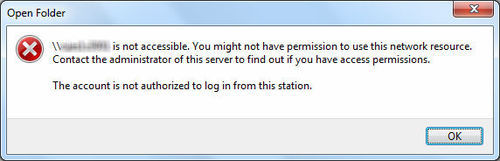
Then, redo the share.
This time, it should ask for username & password.
See if it now works.
Fine, turn OFF ssh now, since I can't do anything without ssh'ing myself into the NAS and check things, so...
Go to the win 8.1 box.
Right click the windows logo on the desktop, and select "Command prompt (admin)"
Once that opens, do net use ____ /delete
where ____ is the name(share) in
Then, redo the share.
This time, it should ask for username & password.
See if it now works.
Last edited:
Mr.Entenmann
Member
Entering the command you mentioned;
The network connection could not be found
More help is available by typing NET HELPMSG 2250
The network connection could not be found
More help is available by typing NET HELPMSG 2250
Mr.Entenmann
Member
Same Error.
TRENDING THREADS
-
 Discussion Zen 5 Speculation (EPYC Turin and Strix Point/Granite Ridge - Ryzen 9000)
- Started by DisEnchantment
- Replies: 25K
-
Discussion Intel Meteor, Arrow, Lunar & Panther Lakes + WCL Discussion Threads
- Started by Tigerick
- Replies: 24K
-
 Discussion Intel current and future Lakes & Rapids thread
- Started by TheF34RChannel
- Replies: 24K
-

-
