• We’re currently investigating an issue related to the forum theme and styling that is impacting page layout and visual formatting. The problem has been identified, and we are actively working on a resolution. There is no impact to user data or functionality, this is strictly a front-end display issue. We’ll post an update once the fix has been deployed. Thanks for your patience while we get this sorted.

Info Upscayl CPU benchmark (much improved with recompiled DLL)

Page 3 - Seeking answers? Join the AnandTech community: where nearly half-a-million members share solutions and discuss the latest tech.
WHICH SETTINGS????
Figured it out!

The word "settings" was the clue 😀

Thanks, Det0x, for helping to make the CPU mode go even faster!

So the trick is to click Settings, go down and find Tile Size and change it to 460 (higher may work but I ran out of patience after trying multiple times with values higher than this).

With Tile Size on Auto, Upscayl will consume roughly 700MB. With its value set to 460, it will consume almost 5.4GB but gets faster!

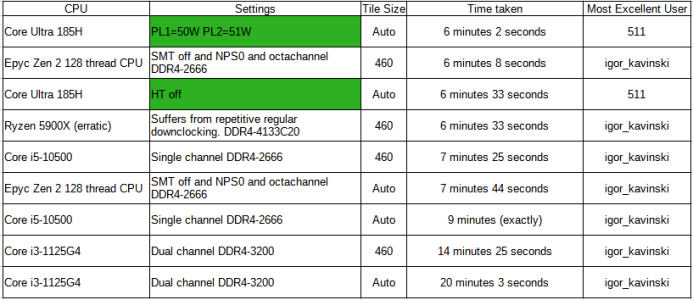
Now I'm not sure what value Det0x used (has to be the tile size I'm assuming) so if anyone wants to revise their score, you are more than welcome to do so!

Below you can see that the Xeon 6248R's time reduced from over three minutes to just 2 minutes 47 seconds.

View attachment 131063

Also, don't be afraid of trying Image Scale 16x for your needs. It's only very slightly slower but obviously the converted image size increases to over 150MB!
 
Figured it out!

The word "settings" was the clue 😀

Thanks, Det0x, for helping to make the CPU mode go even faster!

So the trick is to click Settings, go down and find Tile Size and change it to 460 (higher may work but I ran out of patience after trying multiple times with values higher than this).

With Tile Size on Auto, Upscayl will consume roughly 700MB. With its value set to 460, it will consume almost 5.4GB but gets faster!

Now I'm not sure what value Det0x used (has to be the tile size I'm assuming) so if anyone wants to revise their score, you are more than welcome to do so!
I didn't change any settings or really do anything special at all last time around. Time to beat @Det0x again.
 
Also Click "Upscayl Standard" under "Select AI Model" and scroll all the way to the bottom to choose "Digital Art"
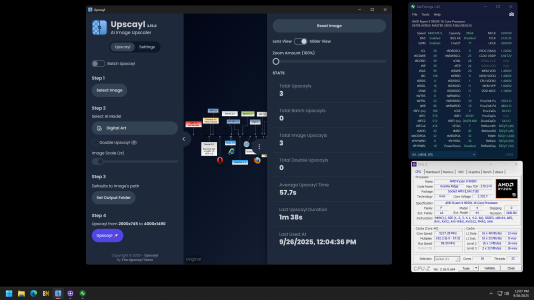
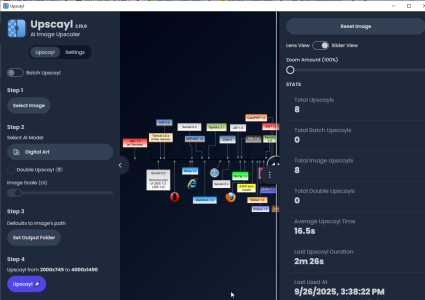
OK, I did that, and this is the result when I click upscayl . iT CAN'T BE THIS FAST.

Edit: I forgot to add this is a 128 core EPYC 9755 with 12 channel memory.
1758925355088.png
 
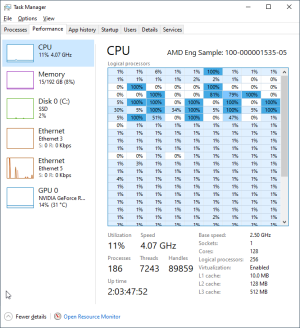
OK< first while it was running (after installing that package)
1758926503667.png


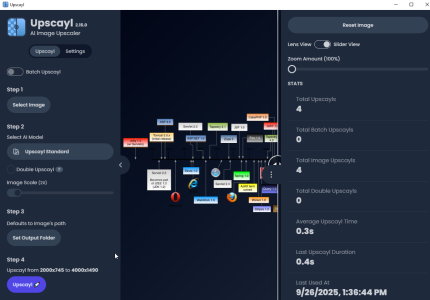
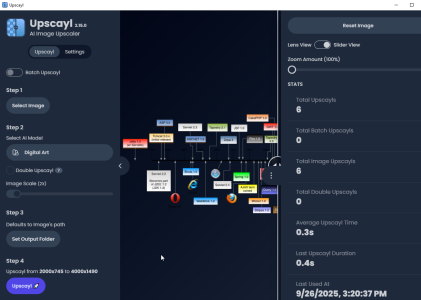
Then the result.
1758926693650.png
Pretty worthless bench to use 11% CPU.
 
Why not DDR5 6400?
it would not post with 6400 if I forced the bios to that. maybe this is why its a QS ? I just didn't play around

Edit, one place says 6400, but here is the user manual
1758983787426.png

Due to this, a QS may only support 4800, and if the memory is faster the bios may not allow post of the selected speed does not match the actual memory speed.
 
Last edited:
  • Like
Reactions: 511
I wonder why that image lol? it seems rather unrepresentative of upscaling applications. upscaling something mostly just text + boxes wouldn't be much better than just upsampling (think mspaint stretch, changing the scale of the image...)it as opposed to, say, something photographic
 
Back
Top