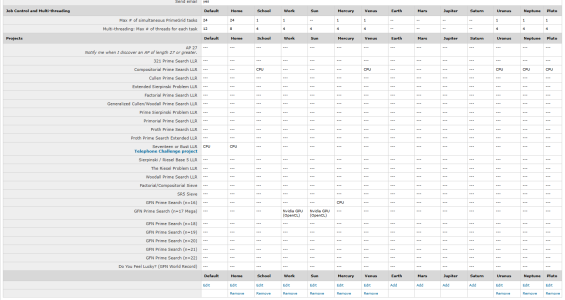
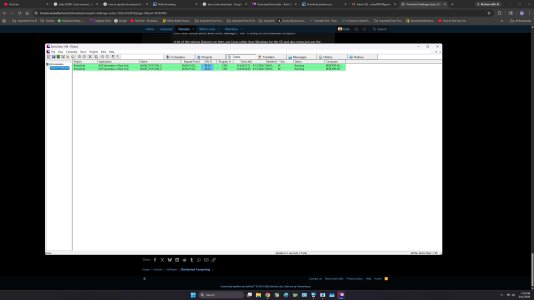
There is another thing you can try, within the 8.2.x BOINC which you presently have, and without having to wait for tasks to finish:
Create a text file with the name
app_config.xml (important: *not* app_config.xml.txt) in the folder
C:\ProgramData\BOINC\projects\www.primegrid.com
This file needs to have the following content:
XML:
<app_config>
    <app_version>
        <app_name>llrSOB</app_name>
        <plan_class>mt</plan_class>
        <cmdline>--nthreads 8</cmdline>
        <avg_ncpus>8</avg_ncpus>
    </app_version>
</app_config>
Then, in boincmgr's advanced view, Options -> Computing preferences, change
"Use at most [ xxx ] % of the CPUs and at most [ yyy ] % of CPU time"
to
"Use at most [ 50 ] % of the CPUs and at most [ 100 ] % of CPU time"
in *both* the "When computer is in use" and "When computer is not in use" section and click [Save].
Then, shut down BOINC. And restart BOINC. (Your PrimeGrid tasks will save their state on BOINC shutdown and continue running at that state after BOINC restart.)
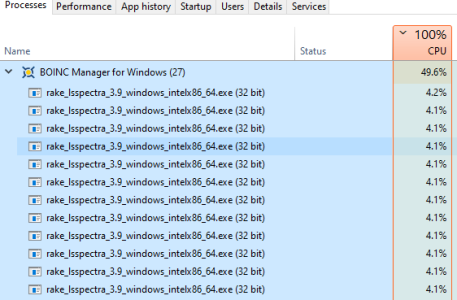
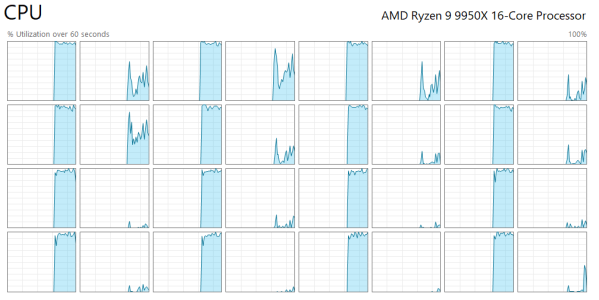
However, one of the team mates who is running Windows too needs to tell you how to check whether the PrimeGrid tasks do indeed have 8 computing threads after restart. (The boincmgr tasks list isn't showing how many threads the program
actually uses; it only shows what the BOINC client has been told via either BOINC server side settings or via our app_config.xml how many threads the task is
supposed to use.) I guess the Windows Taskmanager can show this. But I don't have a Windows computer around me at this very moment to be sure.