• We’re currently investigating an issue related to the forum theme and styling that is impacting page layout and visual formatting. The problem has been identified, and we are actively working on a resolution. There is no impact to user data or functionality, this is strictly a front-end display issue. We’ll post an update once the fix has been deployed. Thanks for your patience while we get this sorted.

Question Networking for Dummies

BoomerD

No Lifer
For some reason, the ethernet connection in my wife's Dell PC has stopped working. Running Windows 10. It's a Realtek adapter, (I can get the complete info if needed) I've downloaded the latest drivers from Dell. (from 2015...it's an OLD PC)

I changed my wifi router yesterday to a better/faster model. This seems to have happened as a result of that change. It took me a while to get her wifi back up and running...but for now, THAT seems to be working. <cross fingers>

I changed the ethernet cable to a known-working cable. (CAT6) so I DON'T THINK that's the cause of the problem.
The port her PC is connected to on the router shows it's connected, but it just doesn't work.

When I run ipconfig, the info basically matches the ipconfig for my pc.(IPv4 and 6 are different...since they're different computers, but subnet mask and default gateway match.

What am I doing wrong? I suppose it's possible network adapter in her 2014 Dell has died...but I think it's something else.
 
Last edited:
Just an old flaky ethernet port. I had this issue with my office Dell PC (Sandy Bridge era). The port suddenly stopped working one day. It was my off day so I told others to ignore it and I would check it next day. Booted the PC next day and the port started working without issue.

You can blow into the port to clear off any accumulated dust. Also might be worth opening up the PC to see if there is a thick layer of dust or dust bunnies surrounding the Ethernet chip on the mobo.
 
Just an old flaky ethernet port. I had this issue with my office Dell PC (Sandy Bridge era). The port suddenly stopped working one day. It was my off day so I told others to ignore it and I would check it next day. Booted the PC next day and the port started working without issue.

You can blow into the port to clear off any accumulated dust. Also might be worth opening up the PC to see if there is a thick layer of dust or dust bunnies surrounding the Ethernet chip on the mobo.

Heh...probably not a bad suggestion. I clean my PC regularly...hers...not so often. 😛
 
Can you ping yourself and router? Can you ping past the router?

I’m assuming windows, so is it set to private or public lan

when you say it’s not working, what isn’t working and what is
 
Can you ping yourself and router? Can you ping past the router?

I’m assuming windows, so is it set to private or public lan

when you say it’s not working, what isn’t working and what is

ping? Like ping cherries? 😛 haven't tried that, but as far as what's not working...her PC says the ethernet isn't connected. Set up as private LAN. (I think...this stuff really isn't my thing...if I can't just plug it in and it works...😵
 
Open an admin command prompt and use this command.

netsh winsock reset

Reboot afterwards. It should clear any hidden network settings. When I converted my garage into an additional room I temporarily connected my computers via WiFi while I made the cable runs. When I finished wiring up all the computers, connecting to the same router/switch it was connected to before all my computers were moved, I could not get any network activity to work. The above command resolved that. No idea why. It has fixed many unexplainable network oddities over the years.
 
Last edited:
Open an admin command prompt and use this command.

netsh winsock reset

Reboot afterwards. It should clear any hidden network settings. When I converted my garage into an additional room I temporarily connected my computers via WiFi while I made the cable runs. When I finished wiring up all the computers, connecting to the same router/switch it was connected to before all my computers were moved, I could not get any network activity to work. The above command resolved that. No idea why. It has fixed many unexplainable network oddities over the years.

Unfortunately, that didn't help. So far, I have wifi, but no ethernet connectivity. Nothing has helped.
 
Is your ethernet configured for a static IP or for DHCP? If static, set the ethernet interface's config back to DHCP and tell us what the IP is. Something you are expecting (192.168.x.x)? Or 169.254.x.x? If the latter, that means the interface may have died.
 
Is your ethernet configured for a static IP or for DHCP? If static, set the ethernet interface's config back to DHCP and tell us what the IP is. Something you are expecting (192.168.x.x)? Or 169.254.x.x? If the latter, that means the interface may have died.

Ahem....I'm not really sure what that means...but I THINK I have a "dynamic IP" from my cable modem/service. IIRC, I get 192.168.x.x...just checked. DHCP.

I was FINALLY able to get the Dell diagnostic program to run. It shows the Network card as "Fail." I might be buying a network card. Her PC has a couple of PCIE-x1 slots open.

Where the ethernet card plugs into the rear IO...the lights indicate that it's working. Solid light to indicate connection, flashing/flickering light to indicate activity.
 
Last edited:
DHCP means dynamic host configuration protocol. When a machine boots, it has no IP address or other network config. It could have "static" config stored in files that it starts to use. The other option is that it broadcasts to local subnet: "Is there DHCP server, please give config!" That can be done without IP address. If there is a server and it does reply, then the network in the machine is configured with the data in the reply. (The DHCP server typically runs in the "modem/service" and can hand out either "dynamic" address -- next free from a pool -- or "static", always same for this machine.) The idea is that config of every machine is decided in one place (the DHCP server) and can be changed quickly and consistently.

If machine is set to use DHCP but does not receive any reply, then it can fall back to "zero-conf" address from "169.254.x.x" range. Those obviously can talk only to other devices in the local subnet, as they don't know the address of router (aka gateway) that is connected to other subnet(s).

If the network chip would be completely dead, then the OS (or diagnostics) would not see that interface device at all and not configure it with any address. No lights either. Not that it matters, if Dell thinks the hardware fails then it is not ok, lights or none.
 
Oddly enough, I just re-ran the Dell SupportAssist app. This time it says the network card/adapter passes...HOWEVER, Windows network status says NO INTERNET, ethernet or wi-fi...yet I can connect.
 
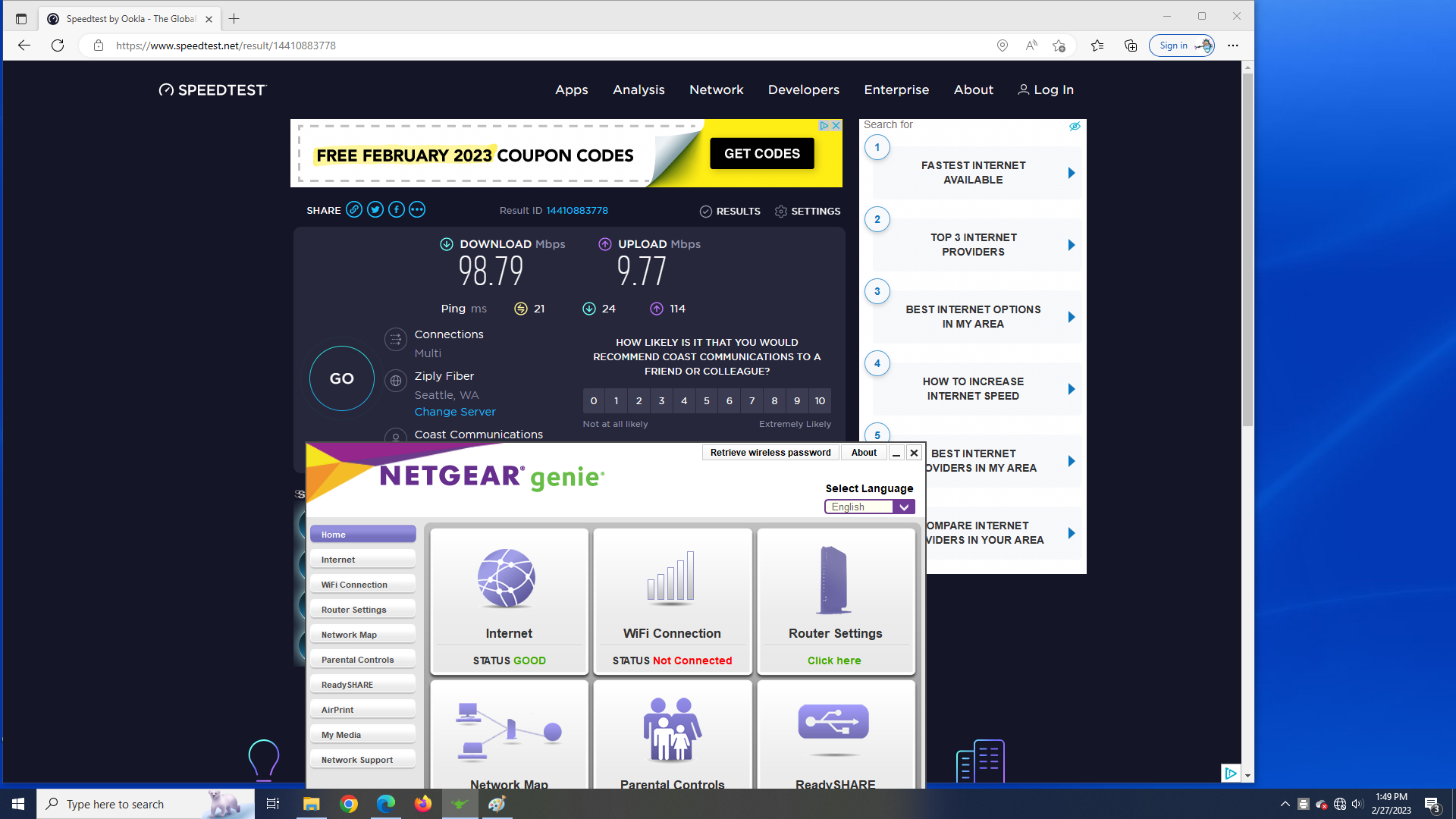
Just turned the wi-fi off on her PC...I still can connect, leading me to suspect that the ethernet connection is good...yet, for some reason, Windows says "no internet."
 
Just turned the wi-fi off on her PC...I still can connect, leading me to suspect that the ethernet connection is good...yet, for some reason, Windows says "no internet."

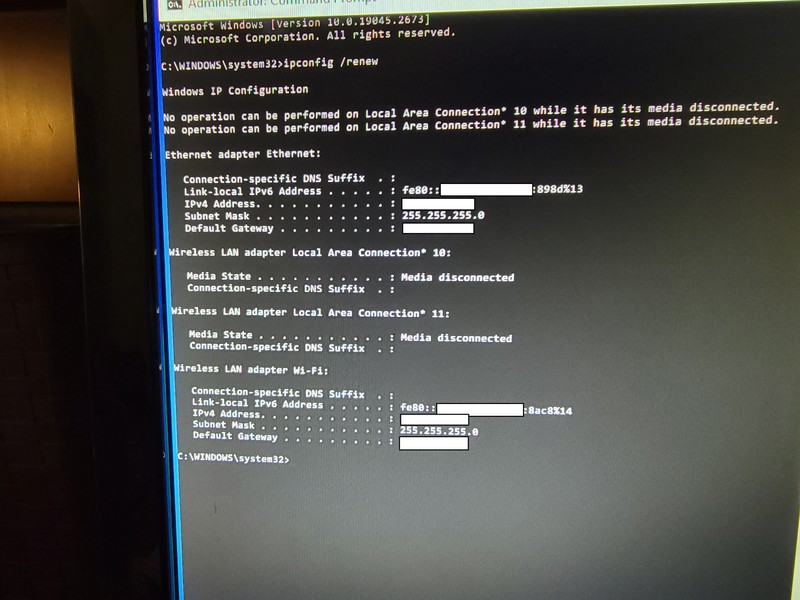
Press Start Button -> type CMD -> get command box. Type "ipconfig /renew"

If you still have problems, can we get a Ipconfig screen shot...
Basically just type "ipconfig" in command box and hit enter, and use windows snip it, to take a picture of what its displaying.
If your behind a router it should be ok, but if your direct connected to the modem, you may want to hide your IP4 address.
 
Press Start Button -> type CMD -> get command box. Type "ipconfig /renew"

If you still have problems, can we get a Ipconfig screen shot...
Basically just type "ipconfig" in command box and hit enter, and use windows snip it, to take a picture of what its displaying.
If your behind a router it should be ok, but if your direct connected to the modem, you may want to hide your IP4 address.

Like dis? (posting from MY PC, working on hers)
aco.sized.jpg
 
Last edited:
Boomer i think the best way to rule out your hardware issue, is to get a USB network card on AMAZON.
Like this:

and see if you are getting the same problem.
If your not, your network adapter probably is fubard.
If your getting the same issue, you can return the network adapter, and its most likely something messed up in your windows network settings.
 
Boomer i think the best way to rule out your hardware issue, is to get a USB network card on AMAZON.
Like this:

and see if you are getting the same problem.
If your not, your network adapter probably is fubard.
If your getting the same issue, you can return the network adapter, and its most likely something messed up in your windows network settings.

I've considered that...or something similar, but why, with wi-fi manually turned off, (as shown in the screen shot above) am I still getting GOOD connection, even though Windows says I have no internet?
 
I've considered that...or something similar, but why, with wi-fi manually turned off, (as shown in the screen shot above) am I still getting GOOD connection, even though Windows says I have no internet?
I've seen this before but never looked into it.

Try the second solution here perhaps?

Some other suggestions.

Windows Report - Error-free Tech Life https://windowsreport.com/wireless-network-not-connected-internet-works/
 
Back
Top