• We’re currently investigating an issue related to the forum theme and styling that is impacting page layout and visual formatting. The problem has been identified, and we are actively working on a resolution. There is no impact to user data or functionality, this is strictly a front-end display issue. We’ll post an update once the fix has been deployed. Thanks for your patience while we get this sorted.

Question BIOS UPDATE QUESTION

bob4432

Lifer
I just got a MSI MAG X870E Tomahawk WiFi MB and want to update the BIOS with the board vacant. Where is the LED that lights up for that? Also using a Sandisk 32GB Ultra Fit USB 3.1 Flash Drive. Any pointers would be greatly appreciated.
 
I just got a MSI MAG X870E Tomahawk WiFi MB and want to update the BIOS with the board vacant. Where is the LED that lights up for that? Also using a Sandisk 32GB Ultra Fit USB 3.1 Flash Drive. Any pointers would be greatly appreciated.

What CPU are you installing that you need to do a BIOS upgrade before installing the CPU? Unless you have a CPU just released, the board should probably support everything up through a 9950X3D out of box and you should be able to update the BIOS through the BIOS flash interface.

The LED should be adjacent to the flash button on the motherboard rear panel.

Generally, to do what you are wanting to do, you'll do the following:

1) Format the flash drive to FAT32 on another system.
2) Download the BIOS to be flashed from the MSI support website. It will download in a .ZIP format.
3) Extract the ZIP file to a known location, and rename the actual extracted BIOS file to MSI.ROM.
4) Copy the MSI.ROM file to the root directory of the flash drive.
5) Make sure the 24pin and 8pin connectors from the PSU are connected to the motherboard. No CPU or RAM is needed.
6) Make sure the power switch on your PSU is turned on. Since you don't have a CPU or DRAM installed, the motherboard should already be powered down.
7) Insert the flash drive into the designated flash port. The specific port to use will be shown on page 24 of your motherboard manual (it is the port on the back panel of the board and designated as item 10 in the diagram).
8) Press the flash button on the back panel of the board (designated as item 9 in the diagram on page 24 of your motherboard manual)
9) The flash LED should start flashing on and off to indicate that the BIOS is being written. It can take 5-10 minutes. The motherboard should shut off once the flash is completed.

Notes:

1) If the light flashes three times and then just turns off, it means either the flash drive is not being detected (MSI boards can sometimes be really picky about flash drives), the BIOS file isn't properly named (i.e. to MSI.ROM), or the file was not found in the flash drive root directory.

2) Once the flash starts, do not remove the flash drive while the light is still flashing. Give it plenty of time to finish and shut down on its own.

General instructions for using the flash BIOS button:

Back panel connectors for your motherboard:
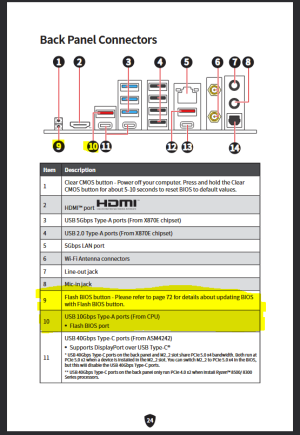
1776550445529.png
 
I am using a 9900x but figured since there were some beta bios in there I would get the newest non beta bios
 
I am using a 9900x but figured since there were some beta bios in there I would get the newest non beta bios

The 9900x was released in August 2024, so unless you got a really old stock motherboard it should support it right out of box.

The MSI board serial number (located by the motherboard 24 pin power connector) contains the manufacture year/month in YYMM format. It is usually located after the first letter B in the middle of the last part of the serial number (i.e. the serial will look something like XXX-XXXX-XXXBYYMMXXXXX, where the numbers in the YYMM after the indicated 'B' position will represent the board manufacture year/month).

MSI has released has released like 5 BIOSes this year alone for that board, with the most recent one being last Wednesday. The one last Wednesday was a minor one (mainly related to AC power loss functionality), but the one before that in March was an AGESA PI update that you may or may not want (i.e. it implemented a BIOS-level anti-cheat mechanism for gaming) if the board was manufactured prior to March 20th.

A significant number of the drivers were updated back in March, though, so you may want to go ahead and grab all of them from the MSI website.
 
The 9900x was released in August 2024, so unless you got a really old stock motherboard it should support it right out of box.

The MSI board serial number (located by the motherboard 24 pin power connector) contains the manufacture year/month in YYMM format. It is usually located after the first letter B in the middle of the last part of the serial number (i.e. the serial will look something like XXX-XXXX-XXXBYYMMXXXXX, where the numbers in the YYMM after the indicated 'B' position will represent the board manufacture year/month).

MSI has released has released like 5 BIOSes this year alone for that board, with the most recent one being last Wednesday. The one last Wednesday was a minor one (mainly related to AC power loss functionality), but the one before that in March was an AGESA PI update that you may or may not want (i.e. it implemented a BIOS-level anti-cheat mechanism for gaming) if the board was manufactured prior to March 20th.

A significant number of the drivers were updated back in March, though, so you may want to go ahead and grab all of them from the MSI website.
Thanks for the info 🙂
 
What is the max size SD card I could use to do the flash, just anything that is small enough to format to FAT32 type?
 
What is the max size SD card I could use to do the flash, just anything that is small enough to format to FAT32 type?

I presume you meant flash drive?

The 32GB drive you mentioned in your initial post should work just fine through either the BIOS flash button method or within the BIOS environment using M-Flash .

I've used larger drives successfully in the past; however, the BIOS flash button (i.e. flashback) process seems to be far more picky about detecting larger drives than is the M-Flash process within the BIOS. Further, the BIOS flashback button requires that you use a Type-A USB drive (as that process only works in the specified single USB-A port on the back of the motherboard), while the M-Flash process can use either USB-A or USB-C drives in any USB port on the motherboard.

FAT32 is recommended for greatest compatibility (this is the only file system format supported when using the BIOS flash button method), while M-Flash within the BIOS environment can usually use FAT32, NTFS, or exFAT formatted drives as it has far better file system support for reading flash drives).
 
Back
Top
