
videobruce
Golden Member
I believe the term is "Ghost" Adapter where a non-existent Network Adapter is listed in the O/S and it doesn't exist preventing re-naming an existing active adapter. The error is that there is another adapter somewhere with the same name. It doesn't show in Device Manager even if you check View/Show Hidden Adapters.
There are other programs that do show the entry; System Informer (formally Process Hacker) can show Ghost adapters under Options/Network Devices/Show hidden adapters.
I found this site, but the Registry hack (3/4 down on the page) didn't work since the 3rd entry location that needed to be removed didn't have that bogus entry listed;
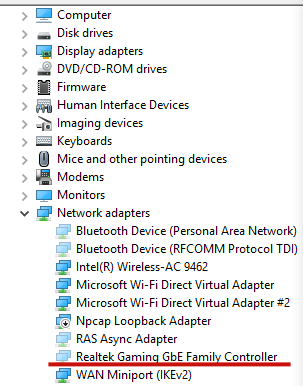
I wound up C&P the Registry ID number of the Ghost adapter into a Registry search box and it returned something like 140 entries. No, I'm not kidding. Gotta love M$.
Any ideas how to get rid of this non-existing entry?? Granted, the existing NIC does work, I just don't like the bogus "#2" added the the name of the active entry.
There are other programs that do show the entry; System Informer (formally Process Hacker) can show Ghost adapters under Options/Network Devices/Show hidden adapters.
I found this site, but the Registry hack (3/4 down on the page) didn't work since the 3rd entry location that needed to be removed didn't have that bogus entry listed;
How to Remove Hidden/Ghost Network Adapters in Windows | Windows OS Hub
When replacing a motherboard or a network card, during a P2V or cold migration of virtual machines between hypervisors, or when configuring multiple VLANs on a single NIC in Windows,…
woshub.com
I wound up C&P the Registry ID number of the Ghost adapter into a Registry search box and it returned something like 140 entries. No, I'm not kidding. Gotta love M$.
Any ideas how to get rid of this non-existing entry?? Granted, the existing NIC does work, I just don't like the bogus "#2" added the the name of the active entry.


