
• We’re currently investigating an issue related to the forum theme and styling that is impacting page layout and visual formatting. The problem has been identified, and we are actively working on a resolution. There is no impact to user data or functionality, this is strictly a front-end display issue. We’ll post an update once the fix has been deployed. Thanks for your patience while we get this sorted.

Motherboard install ASRock Z97 Extreme6

Well, didn't take long to get stuck. I'll post questions here as I run into them.

What the heck do I do with this screw-shaped thing next to the CPU? It's just to above the CPU in this photo. It looks like it might have a 6-point screw type shape.

Ignore it? Try to unscrew it with something? Put a screw in it after the CPU is in?
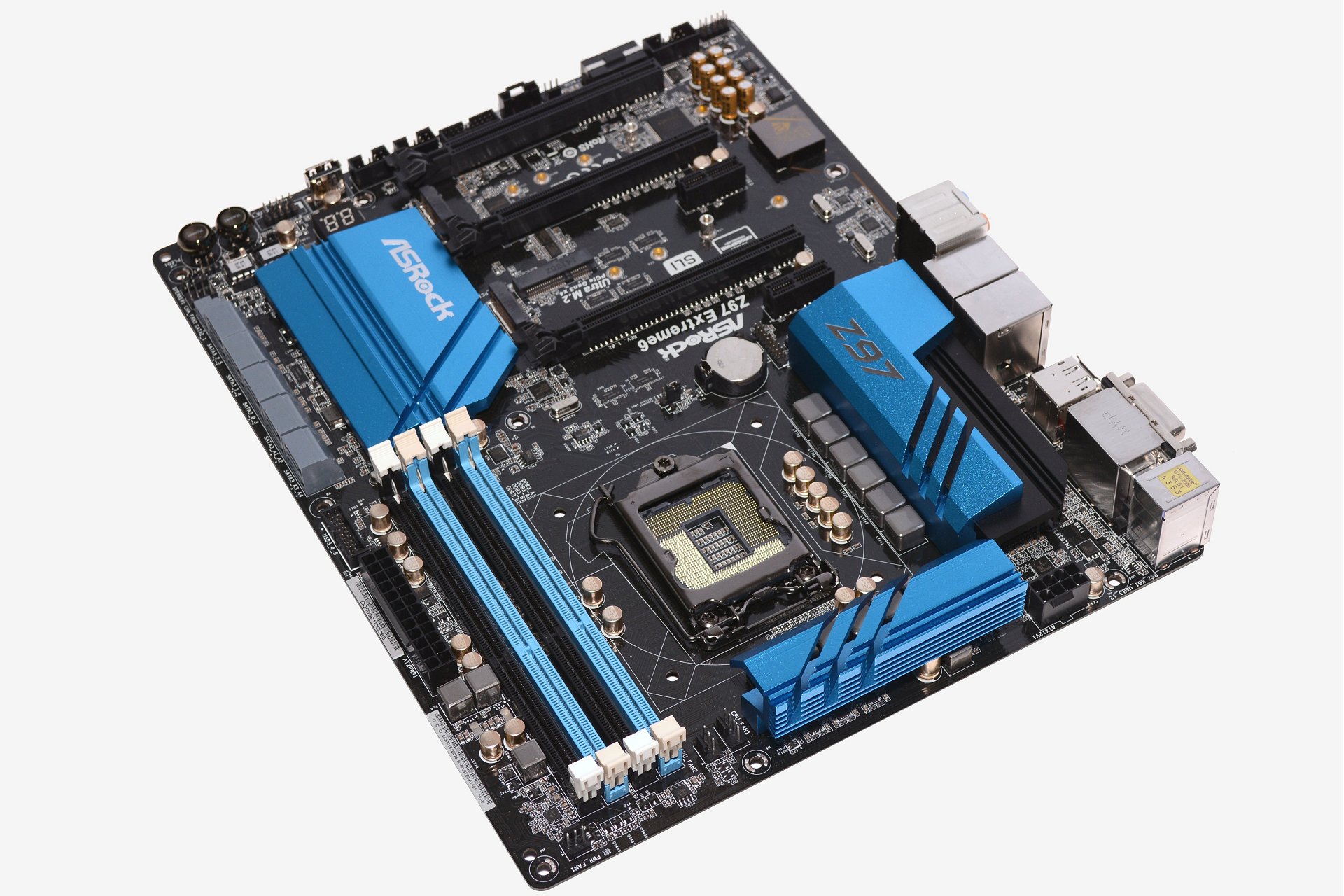
Extreme_01.jpg
 
Oh, and the motherboard came with three small screws in their own bags. What are those for?

They look too small to be used to the case and are apart from the other screws.

How much should I install on the motherboard before putting it in the case?

It's CPU, then RAM, then heatsink on motherboard, then motherboard in case, then PS in case?
 
Last edited:
nice board! I have an H97M Pro4.

don't touch the screw.

I assemble the board first before putting it in the case. Once installed, I put in any cards/drives and cables next.
 
Well, this sucks. I put the CPU in, and the door and lever won't shut to secure it.

Usually the lever won't go down at all and if I wiggle it and get it down, the door is loose and not securing the CPU. Now I can't get it down again or even replace the plastic cover.
 
Have you ever built an Intel LGA-based CPU build? You really need to watch some YouTube PC builder videos. Especially if you don't know that you don't remove the retaining lug on the LGA socket.

Totally new to this. Had to look up what the "LGA socket" refers to from your post.

Now, question is, do I just put the motherboard in the case (after I/O panel) and screw it in? Or is there any more to installing that? Seems that and the PS can go first?

I saw reference to 'spacers' or something for it, but the video I saw only mentioned them as included then didn't show them used installing the MB.

Off to read the manual some more.
 
And not sure about 'routing cables' This case has all kinds of places to put cables through. Don't want to install things in the wrong and mess up an option like someone said 'route the PS cable under the MB'.
 
Ugh MB ready to screw in since I think standoffs are pre-installed but 4 types of screws to pick from.

These are the ones with the somewhat right size and quantity to pick from.

I have others with fewer or much longer no idea what they are for.

How are we supposed to know which?

ry%3D480
 
Start with the 8 pin EPS power supply cable, that's the one near the CPU between the two blue heatsinks... that's usually difficult to get in and out. After that if you have any M.2 SSDs to install do that, keep those screws or you'll be annoyed and/or upset in future.

The sata ports can be a pain to wire so you could go for that next. I think the connectors for the case LEDs, reset switch and power switch connectors from your case are probably the most important, the more room you have to install them the better, then make sure they can't be yanked out easily.
 
Great board.
I used one 24/7 for 2 years running RAID 1 x Samsung 850 Pros and a 950 Pro NVMe.
Just built 2 x more 4U Z97s to make sure for the next 5 years I can stay on Win 7 as I wait for ASIO drivers.

The little screw is for M.2 but when you buy M.2s they usually include one.

Samsung 950 Pros don't throttle down on these boards which is why I got a few of them.
32gbs of Corsair Vengeance LPX on all builds too.
i7 4790k is also great with this BIOS/board.

Had nothing but trouble with Z170/Windows 10.
Cortana can bite me.
 
In. Now the hardest part. All these cables and rest of the components. Where to start? PS, RAM, CPU/heatsink are in.
the smart thing to do is to have only the cpu+heatsink/fan and ram and video output hooked up. connect a keyboard and monitor and then turn it on to make sure it posts. Then add cards or drives.
 
When I got the SSD, they said I could pick m.2 or SATA, I posted here and they either said SATA or no difference and I got SATA, hope that was the right pick...
 
Back
Top