• We’re currently investigating an issue related to the forum theme and styling that is impacting page layout and visual formatting. The problem has been identified, and we are actively working on a resolution. There is no impact to user data or functionality, this is strictly a front-end display issue. We’ll post an update once the fix has been deployed. Thanks for your patience while we get this sorted.

Solved! Cound not boot to the drive

Prof-Q

Junior Member
The title of this post is correct, there is no typo, please continue reading 😊

2 weeks ago I bough the following components
  • CPU: Ryzen 7 3700x
  • Motherboard: MSI B450 Gaming Carbon Pro AC
  • RAM: 2x8GB Corsair Vengeance RGB Pro
  • Storage: 1TB NVMe SSD (XPG SX6000 Lite)
  • GPU: Gigabyte G1 GTX 960 (I bought it used as a temporary solution)

The first thing I did after assembling all the parts is to update motherboard bios, then installing Windows, Updating motherboard drivers, MS Office, Anti-virus, Dropbox, and Steam.
I left the PC switched on overnight and when returned back in the morning, it was on boot screen below. I tried so many things such as loading the default setting of the bios (I know it will not work but just to make sure),
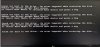
Booting.jpg

Then I used Windows flash drive and tried all the options.
  • Restore, failed, no restore point
  • Safe mode, failed to boot
  • Command prompt and fix the registry, failed
So I gave up and installed the windows once again after wiping the SSD, it worked without any issue for 2 or 3 days and the same issue occurred again!! But this time it happened while I was working on an article in MS Word, suddenly a blue screen then booting to the same point (Cound not boot to the drive)
Again, I tried to fix it but no luck, therefore once again fresh windows install, when I finished everything I tried to test and stress test the components using different software, the CPU, GPU, SSD, and memory were all ok.

The weird thing is, this has happened now more than 5 times
How do I know what is causing all this? Could it be the motherboard?
 
Solution
Could be the drive, but I would run memtest86, which should be more complete a memory diagnostic than the one built into Windows.
What did you use to test the ram and the SSD for faults? It sure sounds like a bad SSD from reading that, maybe more specifically, the RTS5763DK controller.
 
For the memory I used Windows Memory Diagnostics Tool, for the SSD I used Adata SSD ToolBox. I still haven't formatted the system yet, I'm waiting till I find more information about the issue or some sort of fix, then I will do final fresh windows installition.
How do I test the SSD more thoroughly?
 
Is there any tool to test the SSD thoroughly? I used Adata toolbox, and it shows the drive is ok. is that enough?
You can also download CrystalDiskInfo.

If it reports the drive is healthy (along with the Adata Toolbox), it would be very unlikely the drive is bad.
 
Just know I decided to try one more time

In the bios I can see the drive
boot01.jpg

But when installing windows, it couldn't see the drive [img 2]
boot02.jpg


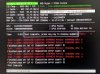
After several times of loading bios defaults and restarts, I was able to get the drive recognized by windows installation, after finishing installing windows, I started windows update and downloaded CrystalDiskMark. While windows is updating and Crystalmark running, I got the ugly blue screen :-( :-( :-(
boot03.jpg

I restarted the PC and started Adata toolbox and CrystalDeskInfo, both did not show any issues in the desk
 
Last edited:
Try it in the other m.2 slot. I know it is slower, and you probably have to remove the heatsink to make it fit, and you cannot use PCI-E 2 thru 5, but it might stop being wonky.
 
Could be the drive, but I would run memtest86, which should be more complete a memory diagnostic than the one built into Windows.
 
Solution
Try it in the other m.2 slot. I know it is slower, and you probably have to remove the heatsink to make it fit, and you cannot use PCI-E 2 thru 5, but it might stop being wonky.

I tried changing the m.2 slot before wiping the drive and installing windows, it didn't recognised it, and anyway, this is not a fix, I will be still worried that someday the error will occur again.
 
Could be the drive, but I would run memtest86, which should be more complete a memory diagnostic than the one built into Windows.

I tried memtest86, there was some errors but I have no idea what it mean. image attached
 

Attachments

  • RAM test.jpg
    RAM test.jpg
    334.3 KB · Views: 14
I tried memtest86, there was some errors but I have no idea what it mean. image attached
This thread pretty much explains what it means if you get memory errors. You will need to test your RAM one module at a time, and then try them in different memory slots (look at your motherboard manual on installing them in which slots).

https://www.passmark.com/forum/memt...pretation-bad-ram-or-other-components-as-well

If you still get errors, you will need to return the memory. Make sure its replacement is on either on the motherboard or memory manufacturer's QVL list.
 
This thread pretty much explains what it means if you get memory errors. You will need to test your RAM one module at a time, and then try them in different memory slots (look at your motherboard manual on installing them in which slots).

https://www.passmark.com/forum/memt...pretation-bad-ram-or-other-components-as-well

If you still get errors, you will need to return the memory. Make sure its replacement is on either on the motherboard or memory manufacturer's QVL list.


Thanks for the information, to confirm the results, I did another 3 rounds of testing as following:
I have 2*8GB sticks in slot 1 and 3

1) I removed the one in slot 3 and kept the one in slot 1, the memtest86 didn't report any errors, therefore I concluded that stick 1 and slot 1 are both ok
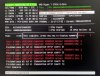
2) Removed stick 1 from slot 1 and fixed stick 2, the memtest86 found 5 errors, so definitely stick 2 is faulty (img attached)
3) To test slot 3, I fixed stick 1 (which is seems to be ok) in slot 3, memtest didn't report any errors

So, the question is, can a faulty ram corrupt the boot sector????

What I will do know is I will remove the faulty stick and will use the PC with the ok stick only.
 

Attachments

  • 2nd stick memory test.jpg
    2nd stick memory test.jpg
    339.3 KB · Views: 2
So, the question is, can a faulty ram corrupt the boot sector????
Definitely.

Faulty RAM can cause all sorts of weird behavior. From random instability trying to use the PC, all the way to the crashes or the PC refusing to even boot.
 
Definitely.

Faulty RAM can cause all sorts of weird behavior. From random instability trying to use the PC, all the way to the crashes or the PC refusing to even boot.

Yes, I know, but will it reproduce the same effect everytime???
More than 5 times in two weeks the boot drive got corrupted
 
Yes, I know, but will it reproduce the same effect everytime???
More than 5 times in two weeks the boot drive got corrupted
Can't say if it will every single time or not.

Like I said, RAM errors can cause a wide range of issues. If you keep the defective module in, you can expect headaches like you are experiencing now.

You seem to be focused on your SSD instead of the RAM throwing errors. You need to take care of that before you can start testing anything else out.
 
This is to update...
Following to removing the bad memory, I installed windows and all the other software, I used the PC heavily and no restart or switch off for 3 days, so far works perfectly.
Apparently, the issue was because of the bad memory.

Thanks for the help.
 
Back
Top