
-
We’re currently investigating an issue related to the forum theme and styling that is impacting page layout and visual formatting. The problem has been identified, and we are actively working on a resolution. There is no impact to user data or functionality, this is strictly a front-end display issue. We’ll post an update once the fix has been deployed. Thanks for your patience while we get this sorted.
You are using an out of date browser. It may not display this or other websites correctly.
You should upgrade or use an alternative browser.
You should upgrade or use an alternative browser.
changed hardware and windows 10 will not boot
Page 2 - Seeking answers? Join the AnandTech community: where nearly half-a-million members share solutions and discuss the latest tech.

Markfw
Moderator Emeritus, Elite Member
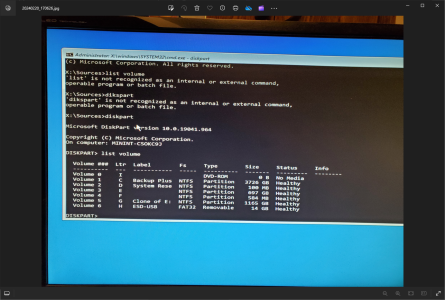
how do I select that disk ? when I type diskpart, the prompt changes to diskpart and list disk works, but not the other command.So, if you first select that disk, and then list partition, it doesn't show any partitions?
Markfw
Moderator Emeritus, Elite Member
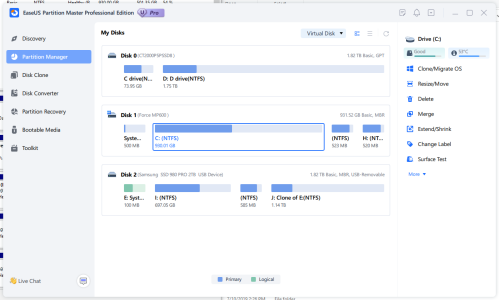
Yes, thats the "hidden system" partition thats always first on a win disk.Is volume 2 on the same disk?

bba-tcg
Golden Member
ok. Here are the steps to fix the problem, starting in diskpart:
if bcdboot says it copied the files successfully, reboot and go into BIOS and pick this as your boot drive. You should now be able to boot.
Code:
1. list disk
2. select disk x  where x is the number for target disk
3. list partition
4. select partition x where x is the 100 MB hidden partition
5. delete partition override
6. create partition efi
7. format fs=fat32 quick
8. assign letter=d since that's the letter above
9. exit diskpart by typing exit
10. type bcdboot e:\windows /l en-us /s d: /f UEFI
if bcdboot says it copied the files successfully, reboot and go into BIOS and pick this as your boot drive. You should now be able to boot.
bba-tcg
Golden Member
Your windows install will end up being c:will letter D change the windows boot letter ? it has to be CC or all the software will not run
I am up to that step and no errors so far
Markfw
Moderator Emeritus, Elite Member
First, I REALLY want to thank you, it worked ! Why could windows not do this ? tHE DRIVE LETTERS OTHER THAN c ARE ALL MESSED UP, BUT i AM SURE i CAN FIX THEM.\\Your windows install will end up being c:
damn caps, sorry/
bba-tcg
Golden Member
You're welcome. Windows startup repair does very little. I do this type of stuff daily.First, I REALLY want to thank you, it worked ! Why could windows not do this ? tHE DRIVE LETTERS OTHER THAN c ARE ALL MESSED UP, BUT i AM SURE i CAN FIX THEM.\\
damn caps, sorry/
Markfw
Moderator Emeritus, Elite Member
Its doing windows updates right now. and I verified the 3070 video drivers,.You're welcome. Windows startup repair does very little. I do this type of stuff daily.
She is going from a 4930 with 16 gig ram (single channel), 1tb sata SSD a 1.5 TB spinner and a 2 tb usb backup drive.
to
a 5950x with 32 gig ram dual channel, a 2 tb nvme PCIE 4.0, and a 4 tb sata 3 SSD. Oh, and from a 1070 to a 3070 video card.
Think she will be happy with the speed upgrade ??
bba-tcg
Golden Member
She should be - it's a nice upgrade. 🙂Its doing windows updates right now. and I verified the 3070 video drivers,.
She is going from a 4930 with 16 gig ram (single channel), 1tb sata SSD a 1.5 TB spinner and a 2 tb usb backup drive.
to
a 5950x with 32 gig ram dual channel, a 2 tb nvme PCIE 4.0, and a 4 tb sata 3 SSD. Oh, and from a 1070 to a 3070 video card.
Think she will be happy with the speed upgrade ??
bba-tcg
Golden Member
This should be a reminder that whenever installing Windows, or as in this case, needing to repair the boot setup due to a change in hardware, it's always best to only have the target drive connected so as to avoid confusion as well as the possibility of Windows putting things on other drives in the system.
Also, you might see if the advanced options are available from the Recovery Console. They're probably not. If you want to restore that capability, lmk and I can tell you how to do that.
Also, you might see if the advanced options are available from the Recovery Console. They're probably not. If you want to restore that capability, lmk and I can tell you how to do that.
Markfw
Moderator Emeritus, Elite Member
So, NEW COMPUTER. Old drive = 250 gig, new driver = 2 tb. object was to clone the disk, then expand the c drive to use the new space. The 2 drives are NVME and plugged into a NVME to USB and both plugged into my computer as seen below during the copy. Disk 2 is the new one and disk 3 is the old one. What this says is F drive I expanded to 2 TB (approx) I moved the 500 med ntfs drive to the end of the space, then expanded the partition.
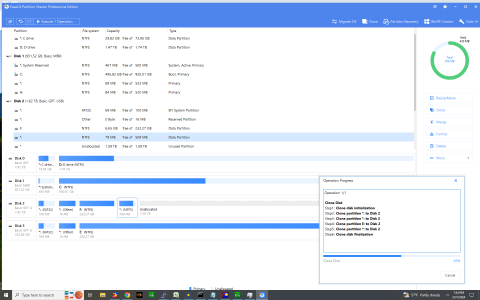
Then when I boot I get nothing but errors, and then I do the shift-F10 like you said befor, and here are the results of diskpart and list disks.
Help !!!! I know the solution is a variant of when you told me before @bba-tcg And thankls in advance.
Then when I boot I get nothing but errors, and then I do the shift-F10 like you said befor, and here are the results of diskpart and list disks.
Help !!!! I know the solution is a variant of when you told me before @bba-tcg And thankls in advance.
Attachments
![20240401_103001[1].jpg](https://anandtech-data.community.forum/attachments/96/96187-0c4640508a3ea3bb39262c81fcc77207.jpg?hash=DEZAUIo-o7)
Last edited:
Markfw
Moderator Emeritus, Elite Member
Updated screen with more info
OK, is this what I need to do ????
1. list disk
2. select disk 0
3. list partition
4. select partition 1
5. delete partition override
6. create partition efi
7. format fs=fat32 quick
8. assign letter=d since that's the letter above
9. exit diskpart by typing exit
10. type bcdboot e:\windows /l en-us /s d: /f UEFI
OK, is this what I need to do ????
1. list disk
2. select disk 0
3. list partition
4. select partition 1
5. delete partition override
6. create partition efi
7. format fs=fat32 quick
8. assign letter=d since that's the letter above
9. exit diskpart by typing exit
10. type bcdboot e:\windows /l en-us /s d: /f UEFI
Attachments
![20240401_110001[1].jpg](https://anandtech-data.community.forum/attachments/96/96188-06c4ed9255006b0bbf6f8a64df2c1422.jpg?hash=BsTtklUAaw)
bba-tcg
Golden Member
Disconnect all except the 2 TB and boot off a Windows install USB drive. It'll then be disk 0. Select it. Then list partition. Delete the 500 MB partition. You'll probably need to use "override". You can select the partition that's labelled EFI and then skip to step 8. After booting, expand the OS partition to use all BUT about 800 MB. lmk when you're at that point.
Markfw
Moderator Emeritus, Elite Member
the picture above is ONLY the 2 TB installed. So what you are asking is exactly what I have above ?? I need step 6,7 right ? I mean its exactly what I did before.Disconnect all except the 2 TB and boot off a Windows install USB drive. It'll then be disk 0. Select it. Then list partition. Delete the 500 MB partition. You'll probably need to use "override". You can select the partition that's labelled EFI and then skip to step 8. After booting, expand the OS partition to use all BUT about 800 MB. lmk when you're at that point.
bba-tcg
Golden Member
Yes, that's what you would see. You don't need steps 5, 6 or 7 because this time you already have an EFI partition. Last time we needed to create one.the picture above is ONLY the 2 TB installed. So what you are asking is exactly what I have above ?? I need step 6,7 right ? I mean its exactly what I did before.
TRENDING THREADS
-
 Discussion Zen 5 Speculation (EPYC Turin and Strix Point/Granite Ridge - Ryzen 9000)
- Started by DisEnchantment
- Replies: 25K
-
Discussion Intel Meteor, Arrow, Lunar & Panther Lakes + WCL Discussion Threads
- Started by Tigerick
- Replies: 25K
-
 Discussion Intel current and future Lakes & Rapids thread
- Started by TheF34RChannel
- Replies: 24K
-

-
