• We’re currently investigating an issue related to the forum theme and styling that is impacting page layout and visual formatting. The problem has been identified, and we are actively working on a resolution. There is no impact to user data or functionality, this is strictly a front-end display issue. We’ll post an update once the fix has been deployed. Thanks for your patience while we get this sorted.

Question A couple Windows questions

jamesdsimone

Golden Member
I need a solution to a couple annoying Windows issues. Copying files when it is done it defaults to opening the window that the files was copied to. It is really annoying since it invariably interrupts what I am doing. Is there a way to stop that? The other is with Windows 7 explorer lets you see how much of a drive is used graphically. How do I set that in Windows 10. I usually have 10+ drives so having to check individually is a pain.
 
For the File Copy thing, if the folder you are copying into is open it will pull it into focus, just back out of that folder and it won't do it. As far as the graphical drive usage, try setting the View setting to Tile.
 
For the File Copy thing, if the folder you are copying into is open it will pull it into focus, just back out of that folder and it won't do it. As far as the graphical drive usage, try setting the View setting to Tile.
Tile view did not do anything. Closing the window might help but just changes one irritation for another, I would have to stop and reopen the drives I was working on.
 
I'm not sure I follow the copying files part. When I copy files a new window pops up showing the copy process. I can activate a different window (some other program) and work on something else with the copy going in the background. I have never had the Explorer window open up when done copying the files. The only time I have seen that is when extracting a ZIP file, there is an option to open a new window after extracting.

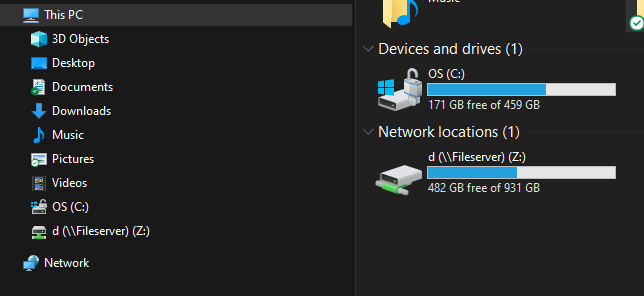
As for the graphic part for drives you need to click on "This PC" in the tree on the left hand side of explorer. It will show you all the drives, including network drives.

Explorer.png
 
I have never had the Explorer window open up when done copying the files.
That's what it does. As soon as the file is done copying the window opens and distupts my work flow. Not sure why it is doing that. I thought there might be a setting I don't know about. The other fix only shows the drives assigned a letter not the rest of my network drives.
 
Last edited:
That's what it does. As soon as the files is done copying the window opens and distupts my work flow. Not sure why it is doing that. I thought there might be a setting I don't know about. The other fix only shows the drives assigned a letter not the rest of my network drives.
What method are you using to copy and paste? Right clicking or CTRL+C/CTRL+V? Some other method?

Are your network drives mapped drives? Or just network devices?
 
What method are you using to copy and paste? Right clicking or CTRL+C/CTRL+V? Some other method?

Are your network drives mapped drives? Or just network devices?
Just right click and copy paste. The network drives are network devices I have too many drives to map them to drive letters.
 
Just right click and copy paste. The network drives are network devices I have too many drives to map them to drive letters.
How is Windows supposed to show you drive space for drives that aren't mapped? Each device could have multiple drives. Which one would it display?
 
Windows opens the destination folder by design under the presumption you are going to do something with the files you copied.

I guess you are having issues because you are copying large files or large numbers of files, then once the copy action completes the destination Explorer window pops up in the middle of whatever you have moved on to do while the copy was happening?

If this is the case, the solution is very simple. After you select the paste command, just hit the minimize button to minimize the destination Explorer window to the taskbar. If you do this, it won't pop back up again when the copy action is complete. You can also just close the destination Explorer window, but I presume you do at least want to eventually check that everything copied.

There is also another way to do it -- it is simple in action but difficult to describe in words. If you need to know that method, post back and let me know and I'll attempt to explain it.

 
Last edited:
Windows 10 doesn’t automatically show the drive usage graph like Windows 7 did, but you can still get a similar overview.Open File Explorer and go to "This PC"—you should see all your drives with a bar underneath each showing how much space is used.If you don’t see the bars, right-click in the empty space in File Explorer, and select View > Tiles or View > Icons. For even more detail, right-click on a drive and go to Properties to see a pie chart of used and free space, though it’s one drive at a time.
Or, use tools like TreeSize Free or WinDirStat for a more detailed and graphical view across all drives.
 
Back
Top