Question RAM Upgrade Issue: Beep Codes and Inconsistent Recognition with New Modules

shakaxl007

Junior Member
Jun 22, 2025
13
4
41
Hello everyone,

I'm hoping to get some advice regarding a problem I've run into while trying to add more RAM to my PC.

Background:
My computer was running flawlessly with 2 identical DDR3-1600 / PC3-12800 RAM modules in a dual-channel configuration (as per the motherboard manual). I bought two additional modules with the exact same specifications to upgrade to 32GB.

The Problem:
I powered down the PC, used compressed air to clean out the dust, and installed the two new modules. Upon powering on, the system started emitting beep codes (5 short beeps) and then shuts down.

Troubleshooting Steps I've Tried:
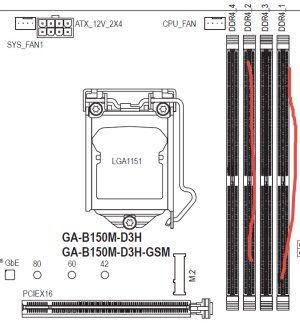
  1. Inconsistent Recognition: After several attempts, the BIOS occasionally recognized only 16GB, but when I tried to add the other sticks, the beeps returned.
  2. Reseating & Swapping: I've swapped the modules into different slots. At one point, it recognized them in a specific configuration, but that stopped working later.
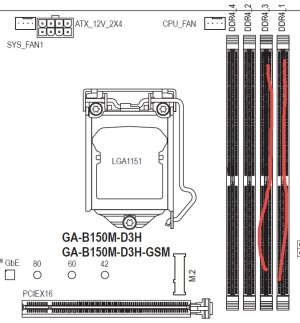
Initial position
Placa y memoria initial.jpg

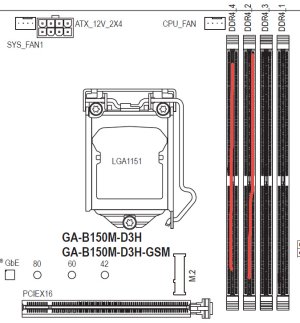
Changed position work
Placa y memoria 2.jpg

Another position work
Placa y memoria 3.jpg

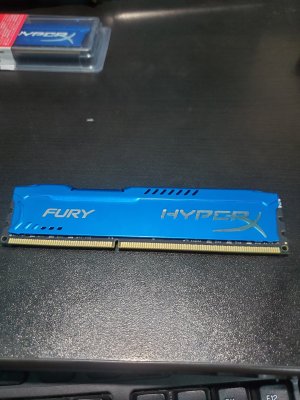
Memory RAM

20251112_222512.jpg
  1. Individual Testing: I tested each module (old and new) one at a time in the primary slot. Every single one of them worked fine on its own, which makes me think none are dead on arrival.
  2. BIOS Reset: I cleared the CMOS by removing the battery to reset the BIOS settings to default. Unfortunately, this did not resolve the issue.
My Questions:

  • Could this be a compatibility issue, even though the modules are supposedly identical?
  • Is it possible my power supply can't handle the increased load?
  • Are there specific BIOS settings I should adjust, like increasing the DRAM voltage or loosening timings?
Has anyone experienced something similar? I would greatly appreciate any alternative solutions or things I might have missed.

Thank you in advance for your help
 

Shmee

Memory & Storage, Graphics Cards Mod Elite Member
Super Moderator
Sep 13, 2008
8,313
3,177
146
When you say you tested each stick individually, did you simply check for POST/boot or did you run memtest to verify no errors? Also I am a bit confused, you mention DDR3, but the manual pictures shown state DDR4. Which is it? And do you happen to know what are the rated specs of each kit? Such as voltage, timings...

I doubt this is a power supply issue, more likely something your system doesn't like about the RAM, possibly with board settings or memory controller can't handle all the sticks. What CPU are you running?

You could try memtesting each stick, it is possible as well that the new kit has errors or something. Only other thing I can think of trying atm is turning off XMP if it is on.
 

shakaxl007

Junior Member
Jun 22, 2025
13
4
41
Actually, I only placed the RAM modules in the slots and checked for beeps. I didn't run memtest because to do that I need to boot, but I can't get to that point due to the beep errors

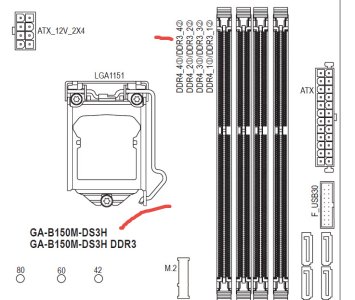
"Yes, sorry, there was a mistake in the motherboard model image, but they are from the same family. I'm attaching the correct image

modulos memoria.jpg

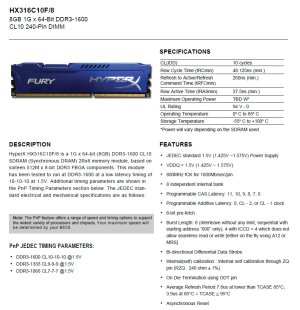
Actually, every module is the same – I made sure to buy these 2 new identical modules to avoid issues. Here's the info in the image
memory datasheet.jpg

One question: when you refer to the memory controller, do you mean on the module itself?

I'm going to try installing them one by one and run memtest, but I remember that earlier today, even with the known-good modules, I got beeps and it wouldn't boot

Info setup:
Exact motherboard model: GIGABYTE B150M-DS3H DDR3-CF

CPU model: Intel Core i5-6400

Model numbers of ALL memory modules: All modules are HX316C10F/8 / Kingston | HyperX FURY Memory Blue - 8GB Module - DDR3 1600MT/s CL10 DIMM

EXACT power supply model number and approximate time in service: ATX MX - 400W Micronics - approx. 8 years

Graphics card model: Nvidia Geforce 210

Any other relevant hardware (number and type of drives): 1 WD Green 1000GB SSD

Current BIOS version: F4


Regards
 

Shmee

Memory & Storage, Graphics Cards Mod Elite Member
Super Moderator
Sep 13, 2008
8,313
3,177
146
The memory controller is on the CPU itself. Though daveybrat makes a good point, updating the BIOS of the board could help with memory compatibility.
 

shakaxl007

Junior Member
Jun 22, 2025
13
4
41
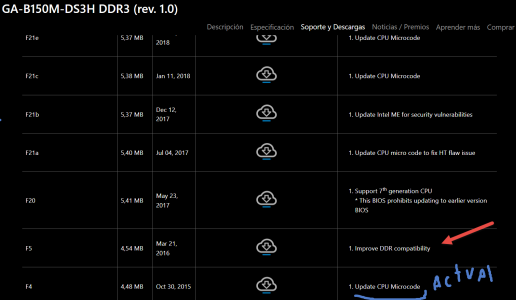
I checked the web and there are 7 new bios firmware to apply, and the F5 says Improve DDR compatibility", I'll go for that or the latest?

1763088475986.png
 

shakaxl007

Junior Member
Jun 22, 2025
13
4
41
Hello there,

Regarding the link I shared, that is indeed the exact motherboard model. The same name appears physically on the board when I opened the case.

Here's what I did:

  • I upgraded the BIOS to the latest version from the manufacturer's website. I took the risk and it was successful (I'm attaching an image of the new BIOS version).

  • I tested again, but the same thing happened: 5 beeps and the system shuts down when I add a new memory module to an available slot.
The slots themselves are fine and working – that's not the problem – because the two old memory modules were originally in slots 1 and 3, and now those same modules are working in slots 2 and 4.


So, I thought the new memory modules I bought were faulty. Well, I removed one old module and put in a new one, and it works. Therefore, I can infer that the new memory modules do work and are not faulty – I'm actually typing this from that same computer right now.

But even so, I cannot go beyond 16GB. I was thinking about removing the cooler, cleaning the CPU, and applying new thermal paste, since I was told the memory controller is located there. But beyond that, I can't find an explanation. My system should support two more simple memory modules and reach 32GB.

Link motherboard: https://www.gigabyte.com/pe/Motherboard/GA-B150M-DS3H-DDR3-rev-10/sp#sp

I appreciate your comments.
 

fralexandr

Platinum Member
Apr 26, 2007
2,293
231
106
www.flickr.com
Have you tried running them at 1333 or 1066?

Also try downloading cpu-z and checking if the ram dies are from the same manufacturer, i.e. micron, hynix or samsung.

Sometimes they can be different and require running looser speeds/timings.

Since it's an i5 6400 I would aso like to ask what operating system are you using?
 
  • Like
Reactions: Shmee

bba-tcg

Golden Member
Apr 8, 2010
1,033
643
136
thecomputerguylbb.com
Have you tried running them at 1333 or 1066?

Also try downloading cpu-z and checking if the ram dies are from the same manufacturer, i.e. micron, hynix or samsung.

Sometimes they can be different and require running looser speeds/timings.

Since it's an i5 6400 I would aso like to ask what operating system are you using?
All good observations. However, if you can't Post, the operating system doesn't really matter.
 

shakaxl007

Junior Member
Jun 22, 2025
13
4
41
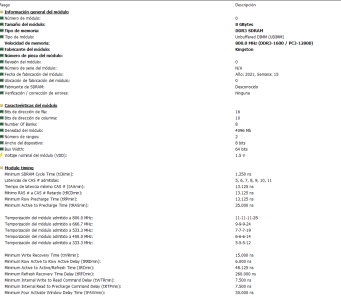
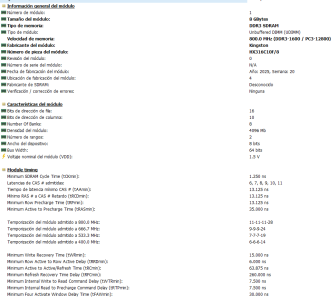
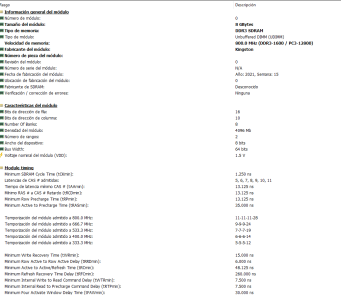
Hi there, I checked in HWiNFO this info

1763431242836.png

1763431256123.png

Not actually it works in 1600 mHZ, my OS is Windows 10 PRO.
All memories Kingston
 

Attachments

  • 1763431187380.png
    1763431187380.png
    93.9 KB · Views: 4

shakaxl007

Junior Member
Jun 22, 2025
13
4
41
Have you tried running them at 1333 or 1066?

Also try downloading cpu-z and checking if the ram dies are from the same manufacturer, i.e. micron, hynix or samsung.

Sometimes they can be different and require running looser speeds/timings.

Since it's an i5 6400 I would aso like to ask what operating system are you using?
how ececute 1333, int he bios?
 

shakaxl007

Junior Member
Jun 22, 2025
13
4
41
Hi everyone,

Great news – I finally got all four RAM modules working and now have 32GB showing in my OS!

I wanted to share the full story here because it might help others facing similar issues. The fix wasn't what I initially expected.

The Backstory:
I’d been struggling for days with the infamous 5-beep error and instant shutdown whenever I tried installing all four 8GB modules. Two modules worked fine (16GB), but adding the other two always failed.

The Breakthrough:
Following advice from this community, I decided to clean the CPU and reapply thermal paste, since the memory controller is integrated there. I knew it needed cleaning anyway.

Here’s exactly what I did:

  1. Removed the cooler – it was dusty, and the fan blades had caked-on dust.
  1. Carefully removed the CPU and placed it in an anti-static bag.
https://imgur.com/ExEkFsY
  1. Cleaned the CPU thoroughly – the old thermal paste was dry and stuck. I used cotton swabs first to remove the bulk, then isopropyl alcohol to clean the surface and even the underside contacts where some residue had seeped.
  2. Inspected the socket – luckily, no bent pins. I gave it a gentle blow with compressed air.
https://imgur.com/UqjBWMh
  1. Reassembled with a small amount of leftover thermal paste.
The Nerve-Wracking Test:

With only the two original RAM modules out, I tried booting with just one module at a time:

  • First module → 5 beeps, shutdown (in two different slots). My heart sank.
  • Second module → One beep! It POSTed! BIOS showed 24GB (8GB + 16GB previously recognized?).
    • I entered the OS and confirmed 24GB running at 1600MHz. I was thrilled – this alone was huge progress.

https://imgur.com/O70URfx

The Moment of Truth:

I carefully installed the last remaining module and pressed the power button.
It took about 5 seconds (usually it’s just 1 second before the normal beep). I was sure it would fail… but then – a single beep!

BIOS loaded… and there it was: 32GB recognized.

https://imgur.com/DAag2ED

Lesson Learned:
Sometimes the issue isn’t the RAM, the slots, or even the BIOS settings. In my case, thermal paste residue and possibly poor CPU contact were interfering with the memory controller’s ability to handle all four sticks.

Thank you to everyone who offered suggestions and support. This community is amazing.

Hope this helps someone else out there!
 
  • Like
Reactions: Schmide

In2Photos

Platinum Member
Mar 21, 2007
2,625
2,794
136
Glad you got it sorted!

Since you removed the CPU from the socket and reinstalled it that may have been the actual fix rather than just new thermal paste. Reseating the CPU can sometimes resolve a slightly misaligned or bad connection on the pins. Keep an eye on your CPU temps for the first few weeks to make sure everything looks good!