• We’re currently investigating an issue related to the forum theme and styling that is impacting page layout and visual formatting. The problem has been identified, and we are actively working on a resolution. There is no impact to user data or functionality, this is strictly a front-end display issue. We’ll post an update once the fix has been deployed. Thanks for your patience while we get this sorted.

Solved! I'm ready to go from Win7 to Win10, but help me iron out some issues first

arredondo

Senior member
My ancient rig is in my signature, and I need some help to upgrade to WIn10 with confidence, please (I have my Win7 Home product key).

The main issue is that I have my Win7 OS installed on the 64GB SSD with 9GB left. That isn't enough to dload Win10 and install since the MS website says I need 35GB free. What is the best way to upgrade while keeping all of my stuff?

I know my 1TB HDD files are preserved, but do I have to figure out a way to remove 30GB+ of files on the SSD first before I upgrade? I don't mind buying, say, a 250GB internal SSD for this project. Is there an easy way to transfer the entire 64GB Win7 over there first, and then upgrade to Win10? If so, please point to step-by-step instructions since I never even reinstalled the OS before... it's just been piling up with stuff for years.

Thanks!
 
You really need a new SSD. While you can install Win10 on a 64GB drive, it will fill up very fast and full SSDs aren't a good thing. Also, when you get the SSD, if you don't have a spare SATA cable you might want to order one because you have to be able to have both the old and new SSDs attached to the system at the same time in order to clone the data over.

The new SSD should include software to clone the contents of the old SSD over to the new one. If it doesn't include such software, you can use the free version of Macrium Reflect to do it.
 
I think you should back up your data and do a clean install of Windows 10 rather than try for an in-place upgrade. My feeling is that if you encountered any odd complications, there would always be the question of whether something from the old Windows install is interfering with the new one (e.g. some incompatible and not fully uninstalled bit of software), at which point people would be advising you to do a clean install anyway.

I think you'd always be scrambling for space on a 64GB SSD, so replacing it is a good idea, not to mention that in my experience Win10 switches off System Restore regularly on any drive that's 128GB or smaller. I also like to have the games I'm currently playing installed on the SSD for maximum performance.

One other advantage of replacing the 64GB SSD is that you can leave it untouched and unconnected during the change-over and so providing yourself with a 'stepping-stone' solution that allows you to revert easily should horrible things happen and you just need your computer working again.
 
Thanks fellas! I'll take your suggestions into consideration with other stuff I've read since I've posted. I understand the idea of a "clean" Win10 install, but I don't want to take a chance and lose some stuff, so I'll go with the clone & upgrade option. With that said, please tell me if my order of operations below has any problems:

- Buy a bigger internal SSD

- Connect it to my computer using a spare SATA cable in an available slot on my mobo (do I format the drive first? do I have to give it a drive letter first?)

- Use Macrium or the free cloning software with the new SSD to clone my old 64GB SSD C: drive (it has no partitions) to the new drive

<side question: if I use Macrium, am I to create a rescue media CD first, or just clone the drive>

- After cloning, can I then take out the old drive, plug the new one in the old one's slot and expect it all to load Win7 with no problems?

- If so, I then plan to go to Microsoft's site to upgrade to Windows 10

- Assuming that works, will Win10 still recognize the untouched 1TB HDD and its partitions/files/etc.?
 
I did just that, with a friend's PC (well, last year almost at this time), when I helped him re-build, from an AM2+ quad-core, to an AM4 quad-core. His Win7 64-bit was on a 120GB SSD, we used Macrium Reflect to make a backup image onto a portable external HDD, using the Macrium bootable rescue USB, and then restored the image file to a fresh new 512GB SSD in his newly-built PC, booted it, re-activated Win7 64-bit on the new hardware, and then did an in-place upgrade to Win10 64-bit, using a Media Creation Tool USB stick built with MS's download tool.

Worked pretty-well, overall. Then after we had Win10 installed, drivers updated, and activated, I took another image file backup of the new Win10 install on the new SSD, to the portable external HDD, so we could use that as a base-line image, so that we would never have to do the in-place Win10 upgrade again from Win7 64-bit, as that takes some time, even with an SSD.

Edit: Oh yeah, if you have a secondary HDD, disconnect it, although, you could image it to the portable external backup HDD just in case too.
 
Last edited:
Well, I was suggesting to image your current OS SSD, to an (additional) portable external HDD, and then restore that image to the new SSD (once old was removed, and new SSD installed), and then after the in-place Win10 upgrade is done on the new SSD, also image that to the portable external HDD.

I guess if you have space, you wouldn't necessarily need an additional portable external HDD, you could image the primary OS SSD to the secondary internal HDD, and then image back to the new SSD once installed, etc.

But I find more peace-of-mind, having a backup SSD that's not always-connected and always-on. Plus, they're like $40-50.
 
Well, you could direct-clone, I suppose. Macrium Reflect supports that. But I prefer to use Image-based backup and restore, because that provides a backup image to fall back on, should something screw up.

It's possible to clone a drive, mistakenly have both drives present in the system upon boot-up, and then Windows will... unfortunately... use BOTH drives, kind of indiscriminately and potentially screw up both installations. (Ask me how I know. 🙁 Windows 2000-era cloning with Norton Ghost off of a DOS boot disk.)

IMHO, better to do it the "safe" way, rather than the "faster" way. Unless you can easily re-install everything on your OS drive, should the need arise to blow it all away and install fresh.
 
^^^ I'll read over your advice, but do I need to disconnect the 1TB internal, or are you asking about an external?
Right before doing the upgrade power down and unlplug any storage drives you have. Only leave the OS drive connected. I've been told sometimes Windows writes to the drives when installing. This is why he suggested that step.
 
Thanks again, fellas! I'm off to the store to get what I need:

- SanDisk - Ultra 512GB Internal SATA Solid State Drive ($65)
- SATA 3 cable ($10)
- SATA drive enclosure (to mount it in my rig - $10)

I think that's everything.
 
Last edited:
I'm back home with the stuff:
- SanDisk - Ultra 512GB Internal SATA Solid State Drive
- SATA 3 cable
- SATA drive enclosure
- USB Flash drive (128GB)
- USB Flash drive (32GB)

I think I'm missing something. Do I need an external USB HDD? As far as I know, I am trying to...

* I image the entire C: drive of my 64GB SSD to the 128GB flash drive with Macurium
* Install Macurium Reflect Bootable onto the 32GB flash drive
* Physically remove my 64GB SSD (and the 1TB HDD)
* Attach the 512GB SSD
* Have my PC boot up from the 32GB flash drive
* Connect the 128GB image drive
* Follow the MR Bootable programs instructions to restore the contents of the image onto the new SSD

Can I do it like that?
 
I got really far, but now I'm stuck. The image was successfully made on the 128GB flash drive, and the bootable rescue disc was made on the 32GB flash drive.

Before attaching the new SSD, I wanted to test the new boot flash drive. I went into the BIOS and only kept the USB drive open to load the boot menu, and the Macrium progam did load from it.

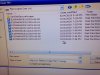
However, when I plugged in the image flash drive, the directory shows eight files for my Win7 C: copy (see attached photo) not just one file as I expected. Am I supposed to manually restore each file to my new SSD once I attach it? Help please.

*EDIT*
Nevermind. Apparebtly the flash drive was formatted for FAT32, which maxes out with 4GB files. I am reformatting it for NFTS and think that should work when I re-do a new image.
 

Attachments

  • IMG_1812.JPG
    IMG_1812.JPG
    1.2 MB · Views: 3
Last edited:
Success!

I am typing this message on my new 512GB SSD. The image/restore process worked fine as everything seems to be in place. I am almost ready to upgrade to Win10.... thanks for everything.
 
Back
Top