• We’re currently investigating an issue related to the forum theme and styling that is impacting page layout and visual formatting. The problem has been identified, and we are actively working on a resolution. There is no impact to user data or functionality, this is strictly a front-end display issue. We’ll post an update once the fix has been deployed. Thanks for your patience while we get this sorted.

Can you help with a simple program question using DOS Batch file?

Status
Not open for further replies.

atwnsw

Member
My wife is an appraiser and not extremely computer savvy and so I helped her by creating a simply batch program which transfers all of her photos from her Nikon camera to a directory on her computer which is where the appraisal software is located.

She recently switch from the Nikon to using the Apple Iphone 4S which has comparable macro capability.

I can't figure out how to change the source directory to Apple Iphone.

Here is original program line:

COPY D:\DCIM\100NIKON\*.* "C:\Documents and Settings\All Users\Documents\PAS_Data\Photos\"

I tried to update the first part to reflect her iphone but it didn’t work. Any suggestions:

Copy Apple Iphone\*.* "C:\Documents and Settings\All Users\Documents\PAS_Data\Photos\"

Copy Apple Iphone:\*.* "C:\Documents and Settings\All Users\Documents\PAS_Data\Photos\"

Neither of them worked.

Any thoughts?

Thanks in advance.

Anthony

P.S. I apologize for the funny icon faces but when I put the name of the C directory or D directory with colons, it
brings up the faces...
 
Last edited:
"Copy Apple Iphone\*.*" is the problem. It will see the Iphone\*.* as an extension of your "Copy Apple" command and I believe a dos batch file needs to copy from a drive letter and won't do it from a windows device label.
 
1)
Code:
Copy Apple Iphone\*.*                "C:\Documents and Settings\All Users\Documents\PAS_Data\Photos\"

Copy Apple Iphone:\*.*               "C:\Documents and Settings\All Users\Documents\PAS_Data\Photos\"
That space between Apple and Iphone is going to make the copy command think you are trying to copy from "Apple" to "Iphone". You wanna put quotes around the whole thing like you did with your destination.

2)What partition letter does your iphone show up as?

you can also look into using the robocopy command too.
 
The apple iphone doesn't have a letter associated with it.

It simply shows up as "Apple Iphone" instead of a letter.

I tried the quotes without success.

Any other ideas?
 
Last edited:
1)
Code:
Copy Apple Iphone\*.*                "C:\Documents and Settings\All Users\Documents\PAS_Data\Photos\"

Copy Apple Iphone:\*.*               "C:\Documents and Settings\All Users\Documents\PAS_Data\Photos\"
That space between Apple and Iphone is going to make the copy command think you are trying to copy from "Apple" to "Iphone". You wanna put quotes around the whole thing like you did with your destination.

2)What partition letter does your iphone show up as?

you can also look into using the robocopy command too.

What is the "robocopy command"?
 
What happens when you try:

cd "Apple Iphone"

??

I've wondered if there was a way to get to my ipoop thru a command prompt but I've never actually tried it. (Mainly because even if you do copy music or videos directly using windows explorer, it still wont play on the stupid thing.... I mean really, why make such a stupid idiotic broken device.... god why is such a piece of crap so popular... rant ... rant)
 
Try puresync. Its free for home use and it has a monitoring function to automatically pull photos from external drives when they are connected.
 
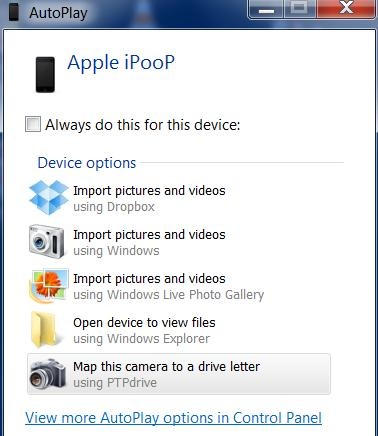
Well if you download PTPDrive http://www.ptpdrive.com/ you can map your camera roll to a drive letter. But it doesnt hold the setting every time you plug in. So you have to select the correct option on this screen:


MWSnap-2012-06-18%2C-20-16-12.jpg


And after that, you get this screen:

MWSnap-2012-06-18%2C-20-16-23.jpg

8526230


Then you click the Map button, and the box goes away. Then you run your batch script, for example:

Code:
z:

xcopy *.jpg C:\pics

del *.jpg

It is fast and relatively painless. But my videos dont seem to show up in that same folder. Not sure what the deal is there.
 
Last edited:
Just thought I'd poke around in "Highly Technical" and saw this thread.

There was once a time when I believed myself to be a DOS "super-expert." Batch files, off-the-cuff commands -- I could do it. I think I threw away all my DOS bibles a long, long time ago.

I won't sneer about "DOS" and "Highly Technical." But I will make a note of this thread. I need to write some batch files of my own . . .

There is one thing, though . . . . file naming conventions (sombody mentioned a " " space in a path) and the limitations on DOS path length, folder-name length or file name length.
 
Well its not really DOS any more. It is windows command line. And for windows 7 it has evolved quite a long ways from dos. But I still dont get why you need a third party tool to assign a drive letter to an ipoop.
 
I don't own an iPhone but it sounds like it is not mounting as a USB Mass Storage device which is preventing Windows from assigning a drive letter to it. I know on Android you can select to connect as Mass storage when plugging in via USB, is there something similar on iOS?
 
Well its not really DOS any more. It is windows command line. And for windows 7 it has evolved quite a long ways from dos. But I still dont get why you need a third party tool to assign a drive letter to an ipoop.

there is no dos anymore, windows and other modern OS create links without needing drive letters.
 
She can run a batch file but she can't click the big "Import Pictures and Videos (using Windows)" button? Ok....
 
Well a batch file is just an icon on the desktop, once you create a shortcut to it. Or it can be pinned to start menu... in either case the type of file it launches is irrelevant. It just works.
 
Status
Not open for further replies.
Back
Top